


Moises: The Musician's AI App
4.58.36K Reviews
App Specs
- Version
- Varies with Device
- Updated On
- License
- Free
- Downloads
- 50,000,000+
- Developer
- Moises Systems
- Categories
- Music & Audio
- Platform
- Android, iOS
Screenshots
 Analysis by AppCompare
If this is your first time trying music separation, the easiest way to think about it is as a practice and listening tool, not a magic replacement for original studio tracks. Moises can help you hear a part more clearly by turning a mixed song into separate stems, but the result still comes from processing an existing recording. That distinction matters: it is excellent for learning, experimenting and rehearsing, while a polished commercial mix or a clean multitrack session remains the better choice when you need complete control.
What to expect from the first listen
Moises is a music and audio app from Moises Systems, built around using AI to separate parts of a song so you can listen to them individually or play along. The app is free to install, rated for Everyone, and its current version is 2.114.0. It has a 4.6 average from around 397,000 ratings, with more than 10 million installs. Those figures suggest that it has found a broad audience, but your first result will depend more on the recording you choose than on popularity.
Before you start, pick a familiar track with a clear sound and a part you can recognize. A song you know well makes it easier to judge whether the vocal or instrument stem is useful, and whether the separation sounds natural enough for your purpose. A dense mix can still be worth trying, but cymbals, reverberation and overlapping instruments may leave faint traces in another stem. I treat the output as a practical listening version rather than a pristine studio recording.
That expectation helps avoid a common disappointment. Separating a finished song is not the same as opening the original recording session: the app is estimating which sounds belong together, and some musical material is hard to untangle perfectly. For practicing a bass line, checking a vocal melody or making a quick backing track, a little bleed may not matter. For precise mastering or a release-ready remix, it can.
Your first setup and a useful first result
After installing the app, the most reassuring first step is simply to choose a track you can access and follow the prompts to process it. The interface is clean and approachable, so you do not need to understand audio engineering before trying it. Processing happens in the cloud, which means the app needs a connection for that part of the workflow. If you are planning to work somewhere with unreliable service, it is sensible to prepare your track beforehand rather than assume a new separation will finish offline.
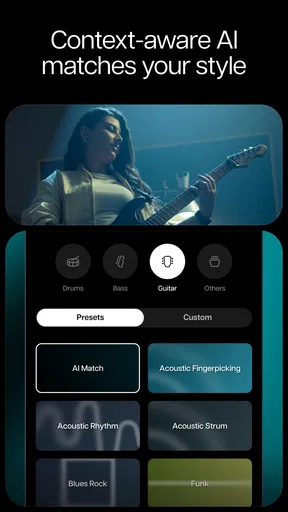
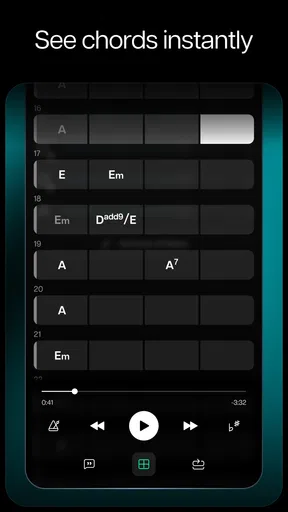
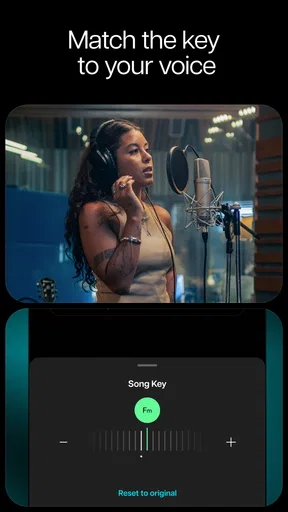
For a first meaningful test, choose one specific goal instead of exploring every control at once. If you play guitar, isolate the guitar part and listen for the chord changes. If you sing, reduce or remove the lead vocal and use the remaining arrangement as a rehearsal bed. If you are learning a difficult passage, slow the song down and keep the pitch unchanged; that makes a fast phrase easier to study without turning it into a lower-sounding version. Starting with one task gives you a clear way to judge whether the result helps.
Once the stems are ready, listen to each one briefly before committing to a full practice session. This small check can save time: an arrangement may separate one prominent part well but leave a subtle instrument mixed with another. If the stem you need is unclear, try a different passage or use the original mix as a reference. I find that switching between the isolated part and the full recording is more useful than practicing from a stem alone, because it keeps the notes in their musical context.
Worth Reading Before You Choose

Flipboard Shows What News Apps Must Do Beyond the Feed

Switching to Android Auto Means Rethinking Your Driving Routine

Google Calendar Makes a Crowded Week Easier to Manage

Ludo King Makes the Most of the Minutes Between Plans

Baby Panda World Brings Quick Play to Modern Phones, but Its Game Library Feels Busy

ESPN’s Live Game View Makes Following Close Games Easier
Making the tools work for your routine
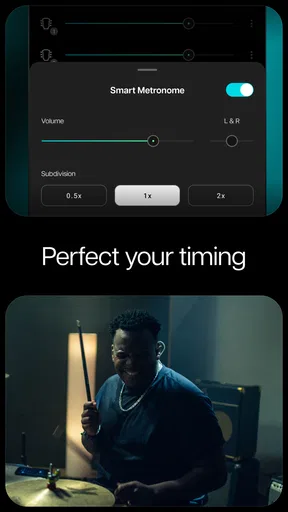
The pitch and speed controls are useful for more than simply making a song easier. A singer can move a track into a more comfortable key for rehearsal, while an instrumentalist can slow a passage to learn its rhythm and gradually return to the original pace. A practical approach is to change one setting at a time, listen for what has improved, and avoid judging your performance against a heavily altered version. The point is to make practice manageable, then check that the part still fits the untouched recording.
There is also a helpful distinction between practice and production. Moises is a convenient way to make a song more interactive without tracking down separate instrumental files, but it does not give you the same control as original multitrack recordings or a full digital audio workstation. If your aim is to balance every microphone, edit a performance or build a finished mix, those tools are the better fit. If you mainly want to hear a part, rehearse with it or explore how an arrangement works, this app is a much simpler starting point.
Unpacking the Features
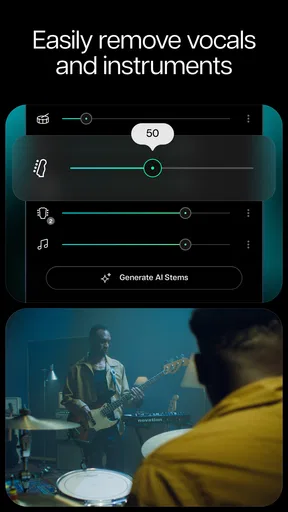
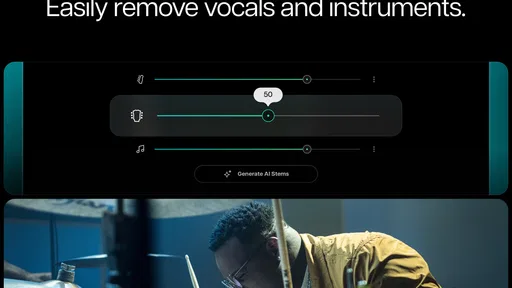
So, what makes Moises such a must-have app? First off, it's powered by some pretty slick AI technology. This isn’t just your run-of-the-mill music app; it’s an AI-driven powerhouse that lets you separate tracks with ease. Imagine being able to take any song and break it down into individual components. You can isolate vocals, remove instruments, or even enhance specific elements to suit your needs. It's like having a backstage pass to your favorite tunes.
But wait, there’s more! The app isn’t just about splitting tracks. You can also change the pitch and speed of any song. This is perfect if you're a musician trying to learn a new piece or if you're a DJ looking to create that perfect remix. And the best part? It’s all done with just a few taps on your screen.
Getting Started with Moises
Diving into the app is a breeze. Once you download it, you’re greeted with a clean and intuitive interface. Trust me, you won’t be spending hours trying to figure out how things work. Everything is laid out in a way that just makes sense. You simply upload a track from your library, and the app gets to work, processing it in the cloud to deliver high-quality stems.
And let’s talk about the quality. The separation is surprisingly precise. Whether it’s jazz, rock, or pop, the app handles it all with finesse. It’s particularly impressive with complex tracks, where you’d expect the AI to struggle. Nope, not here. Moises delivers, and it feels like you’re working in a professional studio.
Exploring the Creative Possibilities
What really sets this app apart is the creative freedom it offers. You can experiment with different genres, mash up tracks, or create your own covers. For musicians, it’s a fantastic practice tool. You can slow down tricky solos without affecting pitch, which is a huge help when you’re trying to nail those difficult parts.
Plus, if you're into karaoke, this app is your new best friend. You can strip vocals from any song and sing along with just the instrumental. It’s like having a karaoke machine with an endless library of songs. And if you’re a content creator, you’ll appreciate how easy it is to create unique soundtracks for your videos.
Choosing the right role for the app
The strongest everyday use case is a short, repeatable practice loop. Imagine you have ten minutes before rehearsal and keep missing the same guitar fill. I would process the song in advance, lower the speed, isolate the relevant part, and listen to it alongside the original mix. That sequence helps identify the notes without losing the timing and feel of the full arrangement. For a singer, the equivalent is rehearsing against a vocal-reduced track, then checking phrasing against the original so the melody does not become detached from the performance.
It can also help when you are curious about arrangement rather than trying to perform a song. Muting parts one at a time can reveal how much a bass line or backing vocal contributes to the groove. That is a useful ear-training exercise: listen first to the full song, then to one stem, and finally return to the complete mix. The comparison is more revealing than leaving a stem isolated for the whole session.
For karaoke, the app is most useful when the instrumental balance remains enjoyable after the lead vocal is reduced. Some recordings rely heavily on doubled vocals, harmonies or vocal effects, so the backing may retain a faint vocal texture. I would test the chorus before planning a whole sing-along around it. Likewise, creators can use separation to explore a musical idea, but should not assume that extracting a part automatically clears rights to reuse the song in a published video.
Limits worth knowing before you rely on a stem
Sound quality is the main trade-off. Separation can leave artifacts or spill sounds between parts, especially when instruments occupy similar ranges or the arrangement is crowded. A distorted guitar and a strong vocal, for example, may not divide as cleanly as a simple arrangement with distinct parts. If the isolated result sounds strange, that does not necessarily mean you chose the wrong setting; the source mix may simply make those sounds difficult to distinguish.
Cloud processing is another practical consideration. It is convenient because the app handles the separation without requiring you to build an audio workstation workflow, but it makes preparation important. Process tracks while you have a dependable connection, and listen to the output before you need it for a lesson, rehearsal or trip. The app is less suitable for someone who expects every operation to happen instantly and entirely on a device with no network access.
There is also a difference between changing pitch for practice and producing a final arrangement. Altering pitch or speed can make a part more accessible, but it can affect the character of the recording. I would use those controls to learn or rehearse, then return to the original setting before making decisions about tone, timing or how a part should sit in a mix.
Who will get the most from it
I would recommend trying it if you are a self-taught musician, a singer who wants a flexible rehearsal track, or a curious listener who enjoys taking songs apart. It is especially handy when you do not have access to separate backing tracks and only need to focus on one component. The low-friction workflow makes it approachable even if terms like stems and vocal isolation are new to you.
It is less compelling for someone who already has clean, separately recorded tracks and needs detailed editing, or for a producer whose work depends on exact control over every source. A dedicated workstation is a better choice for arranging, recording and mixing from the ground up. I would also skip it if your only goal is to play music normally; a standard music player is simpler when you do not need to isolate or adjust anything.
The app is free to install, with in-app purchases ranging from $3.99 to $299.99 per item. I would begin with the free experience and decide whether the specific tools you use often justify spending anything. The purchase range is broad, so check the options shown in the app before committing rather than assuming every capability is included at no cost. That is a more sensible approach than paying before you know whether stem separation fits your routine.
Getting past the common points of confusion
One question new users often have is whether they need music theory or specialist equipment. I do not think either is necessary to get a first result: choose a song, pick a listening goal and judge the stem with your ears. Headphones can make small details easier to notice, but the practical test is whether the part is clear enough for what you want to do. You do not need to identify every instrument correctly before experimenting.
Another reasonable question is whether every song will produce the same quality. It will not. The original recording, arrangement and overlap between sounds all affect how convincing a separated part feels. If one track disappoints, try a simpler song before deciding the whole app is unsuitable. Conversely, a clean result on one song should not lead you to expect the same precision from every dense mix.
It is also worth separating “remove the vocal” from “make a perfect karaoke instrumental.” Those are related goals, but a finished recording can contain harmonies, echoes and effects that are difficult to remove without leaving traces. Preview a section you care about, especially the chorus, and be ready to accept a little residue. For casual singing, that may be no problem; for a polished performance track, a purpose-made instrumental is often the cleaner option.
Finally, the app is not a substitute for learning by listening to the whole recording. Isolated stems are excellent for noticing detail, but they can hide how a part interacts with the rest of the band. My preferred routine is to study the separated part, practice it at a manageable speed, and then play along with the unaltered song. That final step tells you whether the technique transfers back to the music as people actually hear it.
Final Thoughts
In a world where music is such a huge part of our lives, having an app like Moises is a blessing. It takes music manipulation to the next level, offering tools that were once only available to professionals. Whether you’re a musician, a DJ, or just someone who loves to tinker with tunes, this app is worth every penny.
So go ahead, give it a spin. Download Moises from the App Store or Google Play and start exploring the endless possibilities it offers. Who knows, you might just discover your hidden talent for remixing or finally conquer that elusive song you've been trying to master. The stage is yours!
Pros
- User-friendly interface for easy navigation.
- High-quality audio separation capabilities.
- Supports multiple audio formats seamlessly.
- Regular updates with new features.
- Offline mode available for convenience.
Cons
- Requires subscription for full features.
- Occasional lag on older devices.
- Limited free version functionalities.
- High battery consumption during use.
- Needs internet for initial setup.
FAQs for Moises: The Musician's AI App
What is Moises: The Musician's AI App used for?
Moises is designed to help musicians and music enthusiasts isolate instruments, create remixes, and practice with backing tracks. Using advanced AI technology, the app can separate vocals and instruments from any song, allowing users to customize their music experience. It's ideal for learning, creating, and performing.
Is Moises app compatible with both Android and iOS devices?
Yes, Moises is available for both Android and iOS platforms. Users can download the app from the Google Play Store for Android devices and the Apple App Store for iOS devices, ensuring a seamless experience across different operating systems.
Does the Moises app offer a free version?
Moises offers a basic free version with limited features. For users who wish to access advanced functionalities like unlimited song uploads and higher quality audio processing, a premium subscription is available. The free version is a great way to try out the app before committing to a subscription.
How user-friendly is the Moises app for beginners?
Moises is designed with an intuitive interface that's easy to navigate, making it accessible for beginners and experienced musicians alike. The app provides step-by-step guides and tutorials to help users make the most of its features, ensuring a smooth learning curve regardless of skill level.
What are some potential drawbacks of using Moises?
While Moises offers powerful features, some users might find the premium subscription cost prohibitive. Additionally, the quality of audio separation can vary depending on the complexity of the track. Users may need to experiment with different settings to achieve desired results, which might require a bit of patience.


